How to read and parse data in Python 👓

Today's post will be all about data, a topic that is as important as ever, and I'm sure very much relevant to the work performed by the minibuilders out there.
Specifically, we will dig into the first two steps of any data process:
- 👀 Reading the data, which consists in bringing data into our app/library, in a raw format.
- 🧠 Parsing the data, which consists in transforming this raw data into something that can be understood and exploited.
Most apps and tools need to ingest data and parse it in some way. This includes the tools we covered in our starter pack, which read our code as text files, before parsing into a syntax tree, that then can be used to build insights into how the code is built.
We will start by looking at the most common place where we will find data: files, and then move on to some more specific parsing processes, which will be useful, albeit a bit more situational.
Interacting with files
Via the open function, Python makes it very easy to interact with files, for both reading and writing.
This function requires, at the very least, the path to the file you're trying to open, as well as the mode you want to open it in. For reading, the modes are either "rb" to read the file as raw bytes , with no decoding, and "rt" (or simply "r") to read the file as text, decoded using the encoder specified in the encoder argument, which is UTF-8 by default.
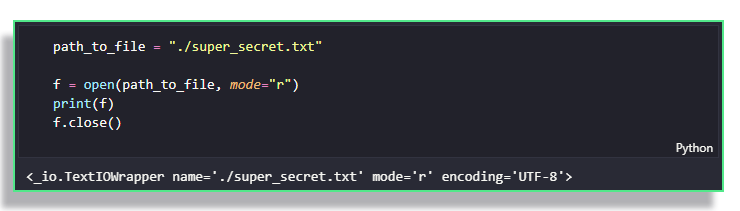
open function returns a "file object" that can be used to then read the dataNote the f.close() call in the above example. When you open a file, you are essentially locking those resources to the process that is currently running (i.e. your Python script). While Python is working hard to ensure that issues do not occur with your files, you may find yourself in one of the two following situations:
- If you open many files as part of your process, you may be stopped by your operating system, who has a limit in the number of files that can be opened concurrently.
- If your program crashes unexpectedly, you may lose your data.
In order to make it easy for you, the Python language gives you a handy-dandy context manager, which takes care of the cleanup once you're done with the file.
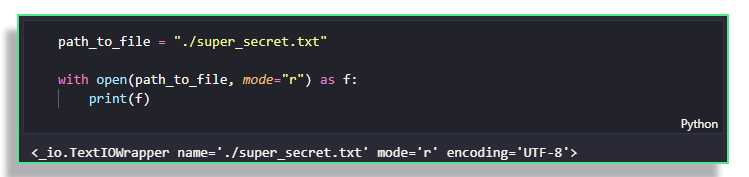
with blockIf you've never seen a context manager before, this may seem like magic. But don't worry, they will be covered in a future post, so subscribe to the newsletter to be alerted!
This is the barebones blueprint for working with files. Using this as a base, we are now going to go over the methods for reading and parsing files.
Simple reading
If you want to simply read the file's contents, with no specific parsing (e.g. if the file only includes text), you can do so in a multitude of ways.
f.read(size)reads a block of sizesizefrom the file. Doing so moves the pointer in the file, so that reading can be picked up at a later stage.

- Omitting the
sizeargument, thus callingf.read()will return the entire file's contents.
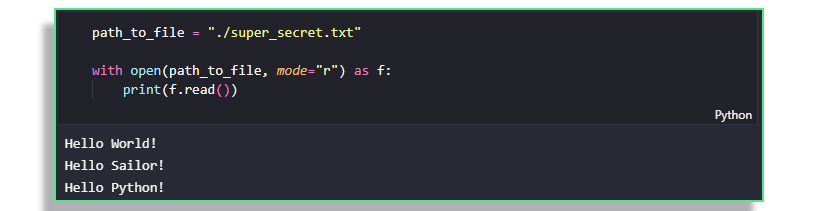
f.readline()returns the next line from the file, including the\ncharacter.

\n is included in the line being printed, we set end="" in the print functionf.readlines()returns all of the lines within the file into an iterator.
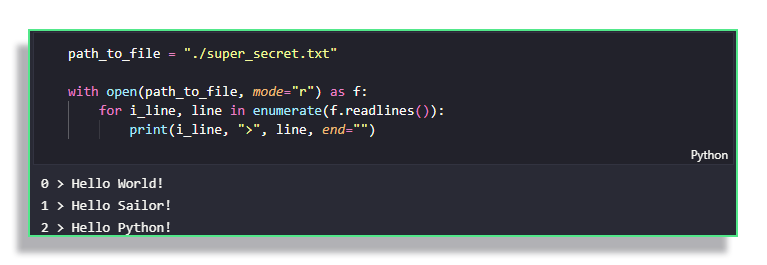
enumerate here to use the line number as well as its contentsParsing structured data from files
The files we use in our Python work are usually built with some kind of structure which gives meaning to the data. In this section, we will see the many ways Python makes it easy for us to read and parse structured data from files, including configuration files, but also more general data storage files, including tabular data.
.toml and .ini files
Consider the pyproject.toml file, which we have creating using the poetry package in our previous post.
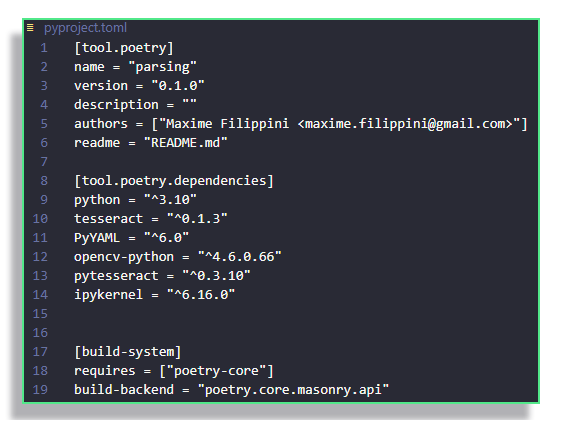
poetryWe would like to read the contents of this file and store it in some kind of dictionary, which will allow us to access its contents programmatically. Whenever such a task needs to be accomplished, you will have two ways to act:
- I will look whether an implementation of such a parser already exists, either in the Python standard library, or in a trusted third party library; or
- I will implement my own parser, because other implementations do not suit my needs.
As I'm sure you've guessed, the first method is preferable when it is suitable, as it will save us time and headaches in the future. I present below a very crude implementation of the parsing task below.
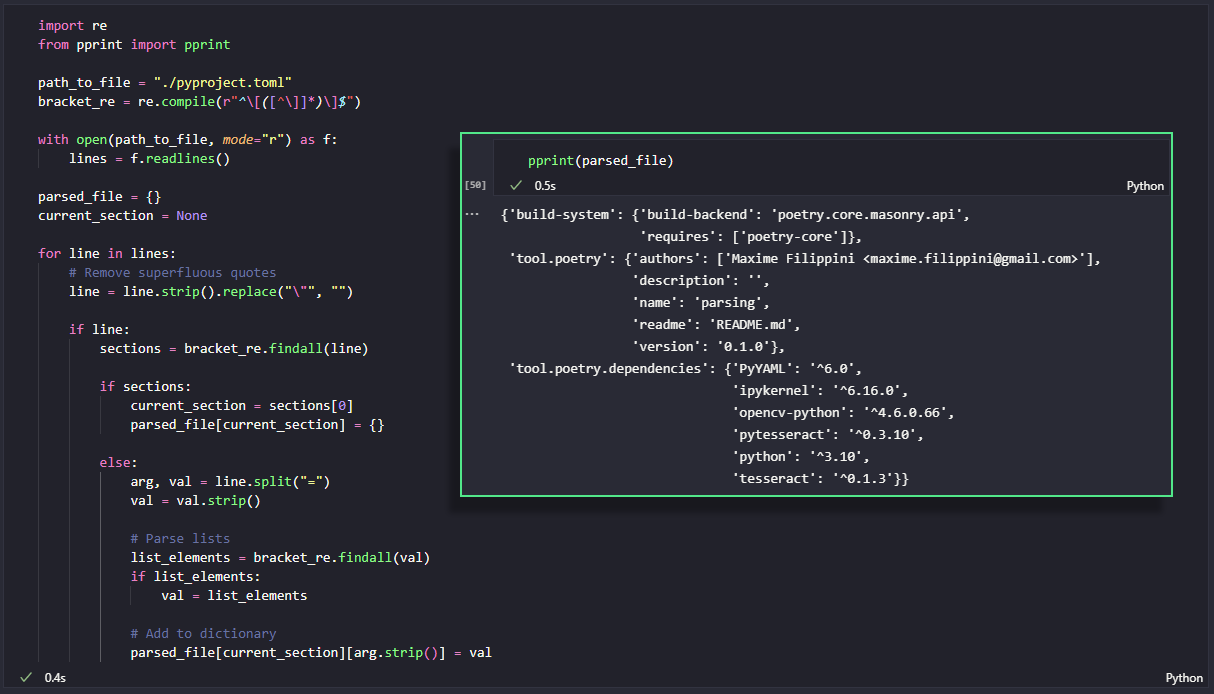
As you can see, it takes quite a few lines of code, and I cannot possibly be sure that I've covered every single edge case, as doing so would require me to dig into the .toml documentation. It works well in this specific example, but might break in the future.
The alternative would be to use the tomli package, which is a third party package that will be integrated into the standard library (and renamed to tomllib) in Python 3.11.
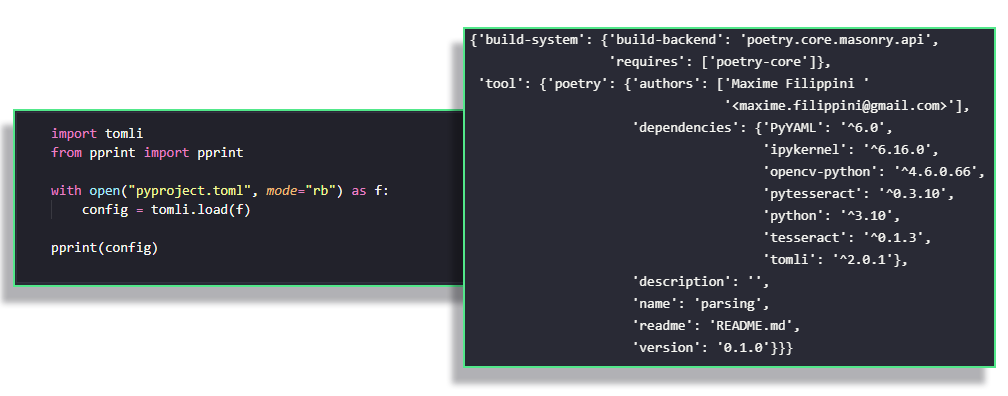
tomli makes this parsing task very easyIn this case, we only have to open the file in binary mode (this is a tomli requirement), and call the load function on our open file. You will notice that it has split the subsections of the tool section in the resulting dictionary, which was not included in our shoddy implementation above.
If you want to process .ini files, the standard library includes a module called configparser, which is built to do just that. For more details, please refer to the official documentation.
.yaml and .json
Other commonly used file formats are .yaml and .json, which are used to store structured data. The more astute among you will remember that the configuration file for the pre-commit tool is a .yaml file.
To parse these files, we use two libraries that provide a similar API as tomli: the aptly named json and PyYAML.
Consider the two following equivalent .yaml and .json files.
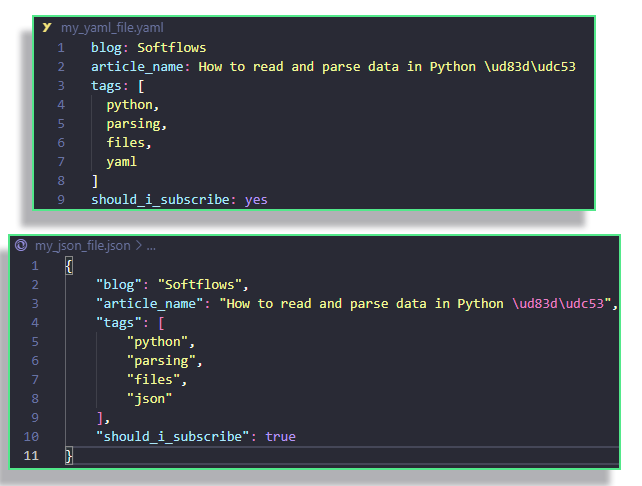
To parse them, we use the same "recipe" as we did with .toml, i.e.
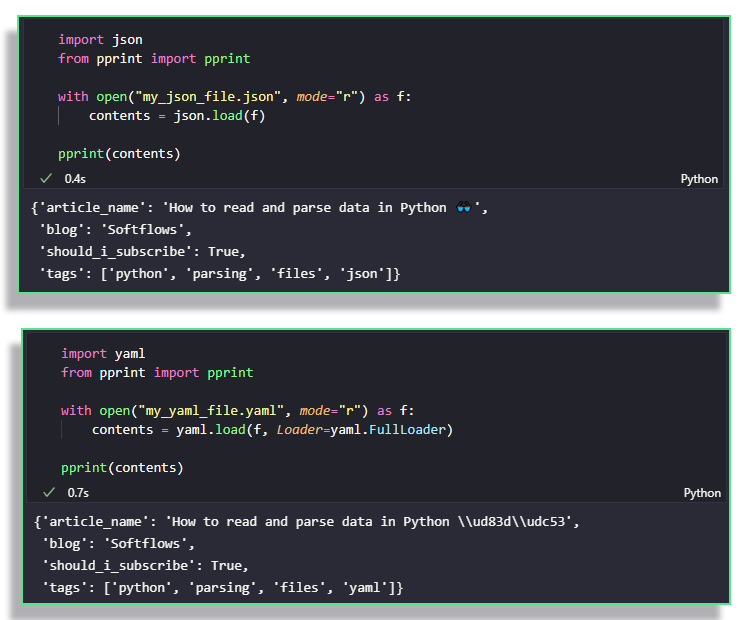
yaml and json librariesSee? Couldn't be easier!
Tabular data files
When dealing with tabular data files, I recommend that you leverage the library you would use to then exploit that data to parse it. In Python, we use pandas for this purpose.
pandas, as part of its huge set of functionalities, allows you to parse a large number of data files, including some of the formats we've already talked about, like .json.
To see the full list of functions, please refer to the official documentation.
Interacting with web pages
If you want to retrieve the contents of a webpage, you first read it using the requests module. To install it into your poetry environment, if you are using it, simply run $ poetry add requests.
Let's retrieve the contents of our last blog post for example.
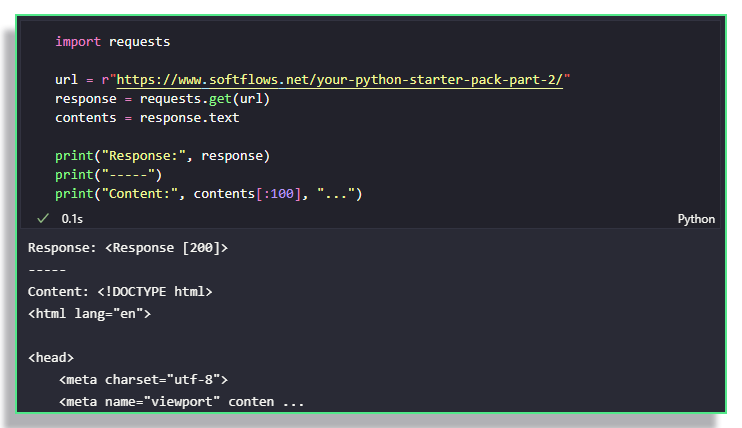
requests library lets you interact with the web in PythonBut as you can imagine, having it in text format is not very helpful. Parsing html can be a bit tricky because of the highly nested structures that can happen in webpage elements, and we therefore need a specialized library for parsing.
BeautifulSoup to the rescue! To install this powerful, yet funnily named library, run the following command $ poetry add beautifulsoup4 if you use poetry, or $ pip install beautifulsoup4 otherwise.
BeautifulSoup allows you to find html tags within the tree-like structure of the webpage. These tags can be found based on either the tag itself (e.g. <a> for hyperlinks), or any attribute of the tag (e.g. styling attributes, the class name, etc.).
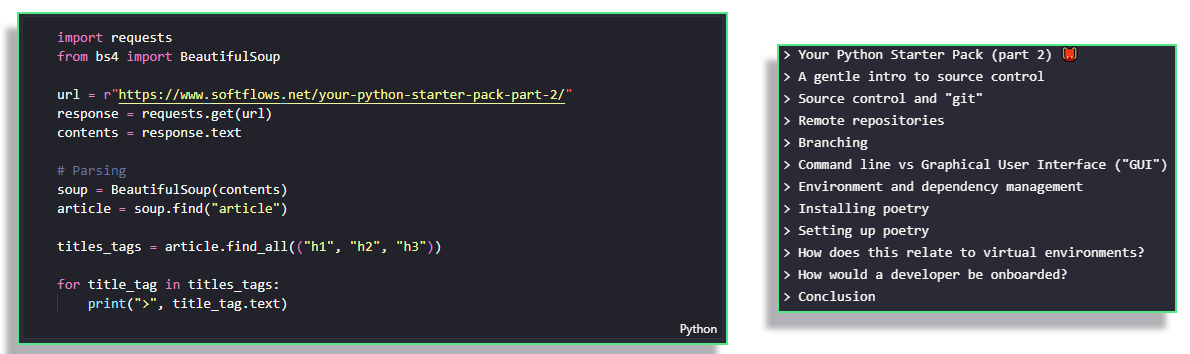
To illustrate the use of this package, let's try to retrieve all of the titles in the blog post. Titles are indicated by so-called h tags, ranging from <h1> for majort titles to <h6> for the smallest titles. Since we are only interested in the titles within the article, we limit ourselves to those found within the children of the <article> tag.
This can be super useful for retrieving information that is stored within the html of a page. Web pages that display content via JavaScript cannot be "scraped" that way. For those, look into the selenium package.
robots.txt file, by accessing www.website.com/robots.txt via your web browser.Reading machine-readable .pdfs
Often, you may have to automate a process which needs to retrieve some kind of data from a machine-readable .pdf (think any pdf where you can select and copy the text therein).
Say you receive a report from a service everyday, in pdf format, from which you need to retrieve a single data point, that is easily to locate on the page. If getting a data file like those we previously mentioned is not feasible, you can try to extract it directly from these .pdf files.
To read these .pdf files, you can use the PyPDF2 library. See the example below for the extraction of all the text from a pre-publication paper.
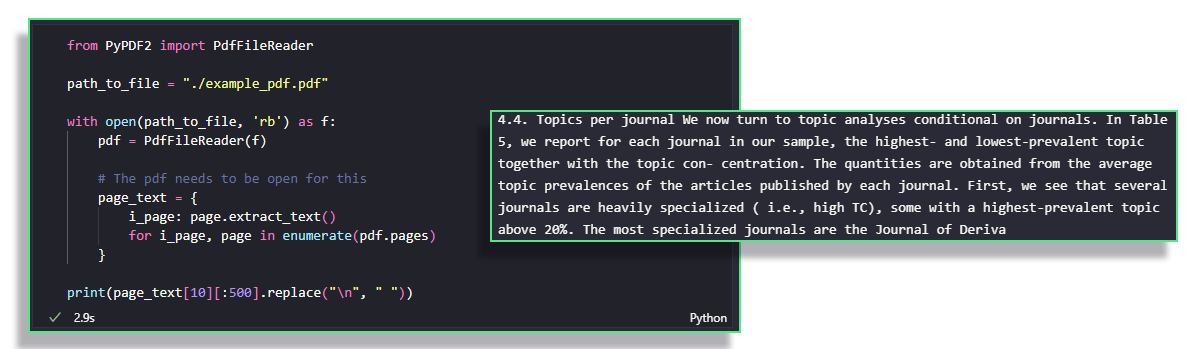
For more on the features of the package, head over to the official documentation.
Reading images containing text
Sometimes, you may need to retrieve data from image-based .pdfs, e.g. built from scanned documents, or from images of text. In such a situation, you do not have a choice but to turn to Optical Character Recognition ("OCR").
OCR is a vast domain that requires a lot of knowledge, so I will not dig too deep in this post, but I invite you to find some installation steps as well as an example of use below. We are going to use Tesseract, which is a humongous OCR engine developed by Google, but that is luckily not too hard to use for simple tasks.
Start by installing the tesseract engine using the install guide. On Ubuntu, you can simply install it from apt by running $ sudo apt install tesseract-ocr. Then, you need to install the opencv package for pre-processing your images, and pytesseract so that you can run tesseract via Python. If you use poetry, you can simply run $ poetry add python-opencv pytesseract.
The simplest pipeline can be found in the image below. It is simple because the text was high enough quality that I did not need to pre-process the image to make tesseract's life easier.
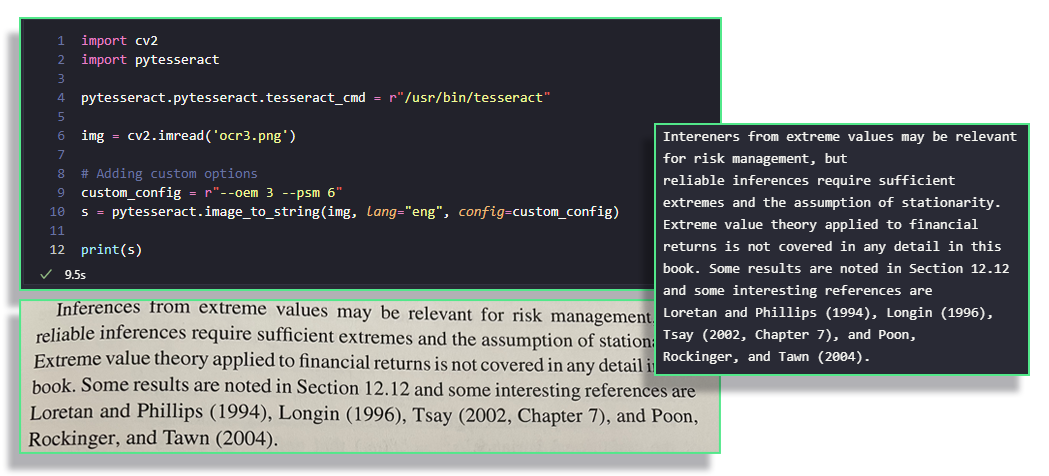
As you can see, the result is quite good, with an issue in the first word, most likely due to distortion. Again, this is a bit of a cherrypicked example, but I hope it's done its job in illustrating that retrieving such data is actually possible in Python.
Conclusion
I have seen many people in the past assume that some tasks are "un-automatable" (is that even a word?), simply because they did not know that parsing incoming data was possible (e.g. pdf data). But it is only once you reject the notion of impossibility that you can provide truly great value through your automation. Thankfully, Python does not ask us to work hard very often in finding these solutions, thanks to all of the wonderful third-party packages out there.
I hope this post has shown you the breadth of what is possible, even it did not go particularily in depth into any specific process. If you would like me to do a deep dive on any particular topic, please comment below, send me an email (maxime@softflows.net), or send me a message on LinkedIn!


Comments ()